Tanpura
The stringed drone that sits beneath every raag. Pick your Sa, dial in pitch and timbre, and let it sustain in the background while you practice.
What is a tanpura?
A tanpura is a long-necked instrument with four to six strings whose only job is to play a continuous, hypnotic drone. It carries no melody and no rhythm — it simply sustains the home note so a singer or instrumentalist always has a reference pitch to return to. Almost every Hindustani and Carnatic performance begins with it.
The "Sa" — your reference pitch
Indian classical music has no fixed note names like C or G. Instead a musician chooses a home note and calls it Sa, and every other note is sung relative to it. The tanpura's job is to keep that Sa ringing in the air so your ear never loses its anchor. Set the app to your Sa and the whole raag falls into place around it.
Why it sounds so alive
A tanpura is tuned to just a couple of notes — usually Pa–Sa–Sa–Sa (the fifth and the home note across octaves). What makes it mesmerising is a tiny thread on the bridge called the jivari ("life-giver"), which makes each string bloom into a shimmering cloud of overtones. That cloud is exactly what trains your ear to place notes precisely.
Below is a walk-through of how to set your Sa, balance and fine-tune each string, run the drone, and check your own pitch with the built-in tuner.
Tanpura overview
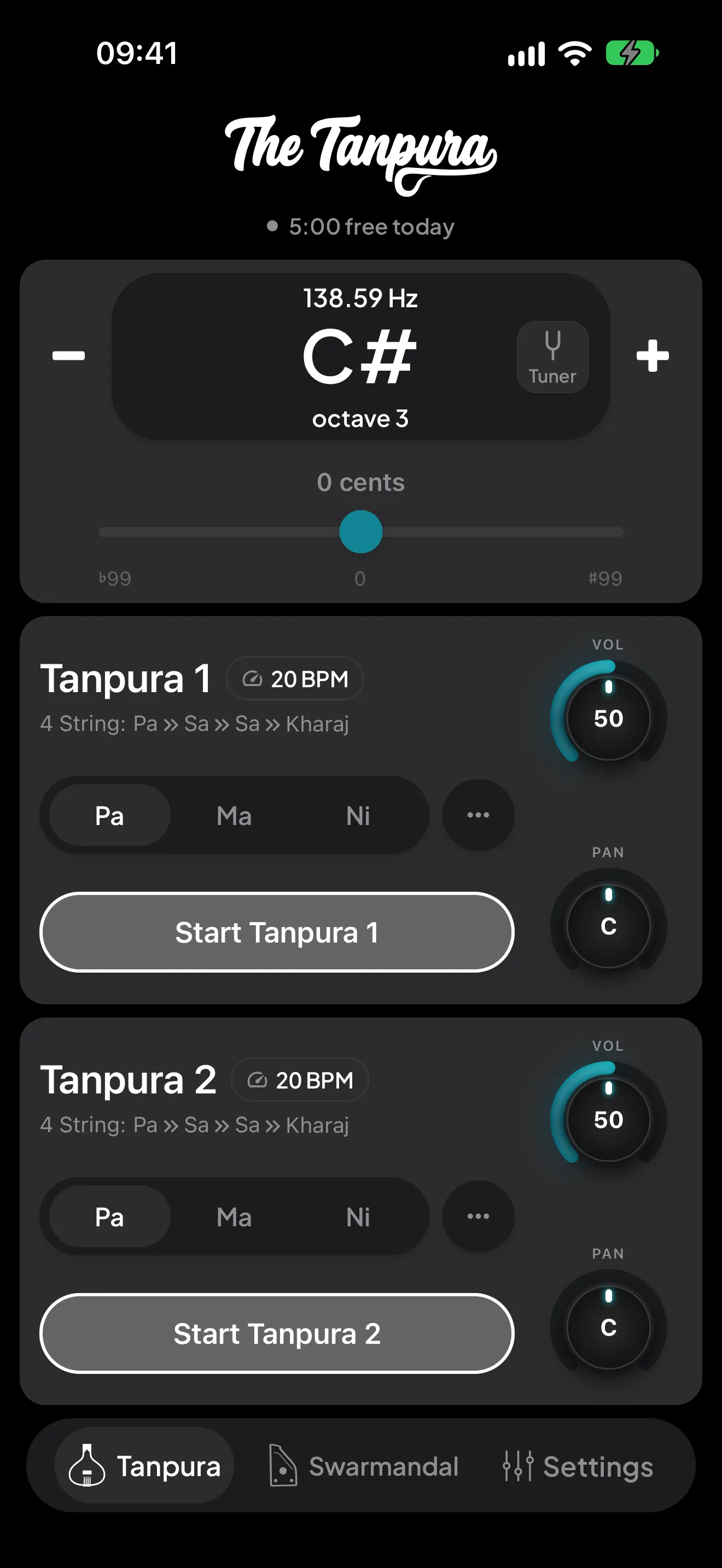
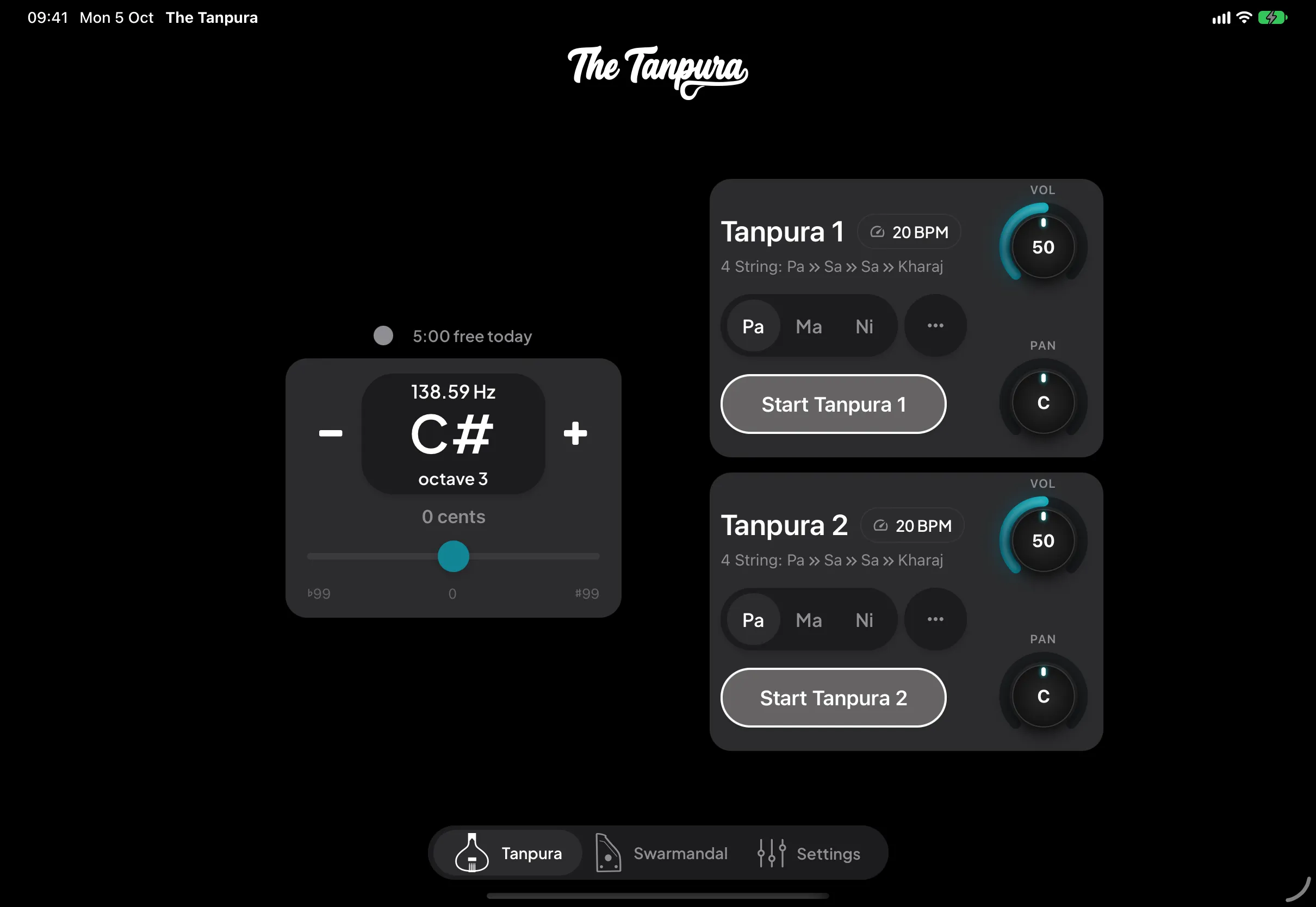
The Tanpura tab is your home for drone practice. The note display at the top is your Sa, with its frequency above and its octave below. The − and + either side move it a semitone at a time, and the cents slider beneath fine-tunes it, so you can match another instrument or a singer exactly. The Tuner button inside the display opens the tuner.
Below it are two independent tanpuras, each on its own card:
- Pa / Ma / Ni picks the first string, the one that changes from raag to raag. The ⋯ beside it opens the string settings (below).
- The BPM chip sets how fast the strings are plucked.
- Vol and Pan dials set its level and its place left to right.
- Start sets it ringing; it glows while it plays.
On the free plan, the line under the logo shows how much of today's free time is left.


The string settings
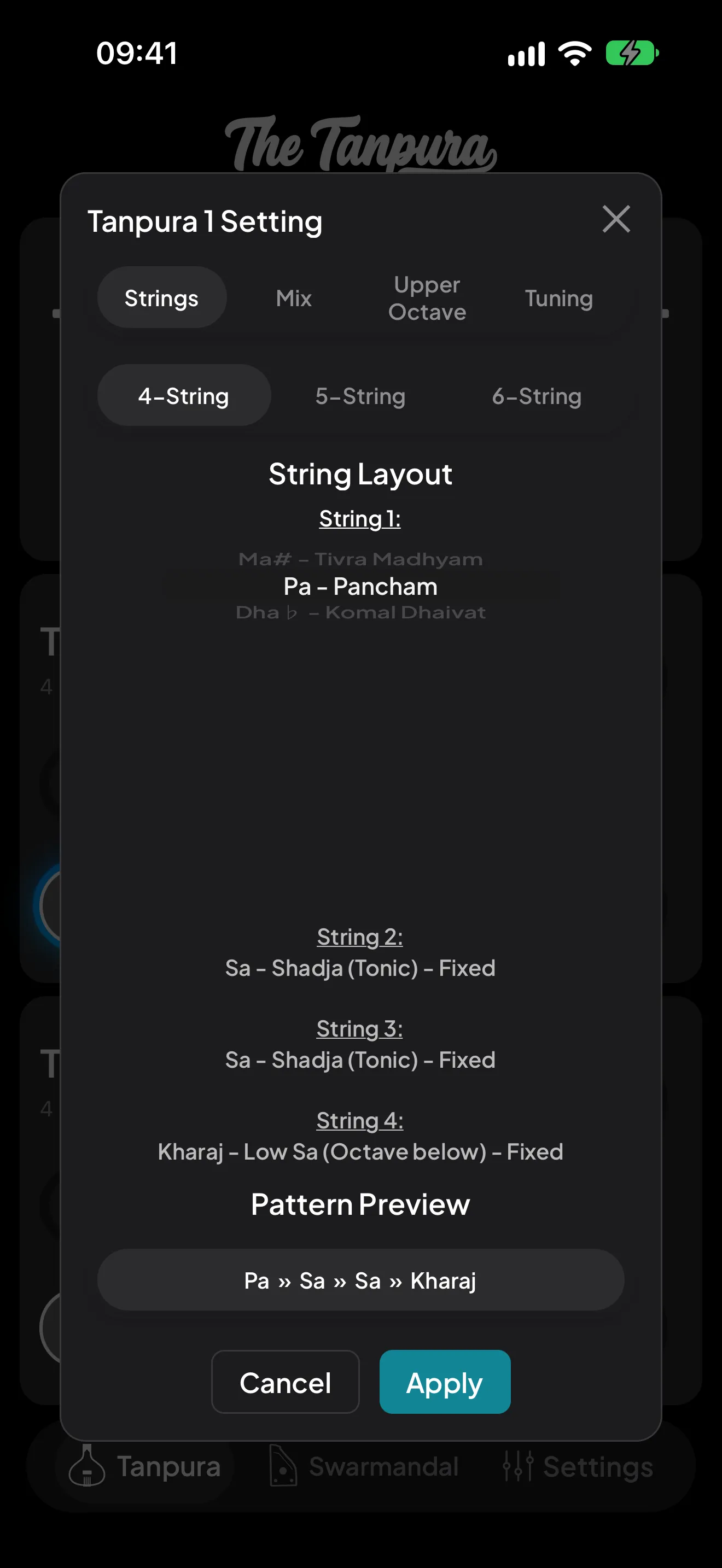
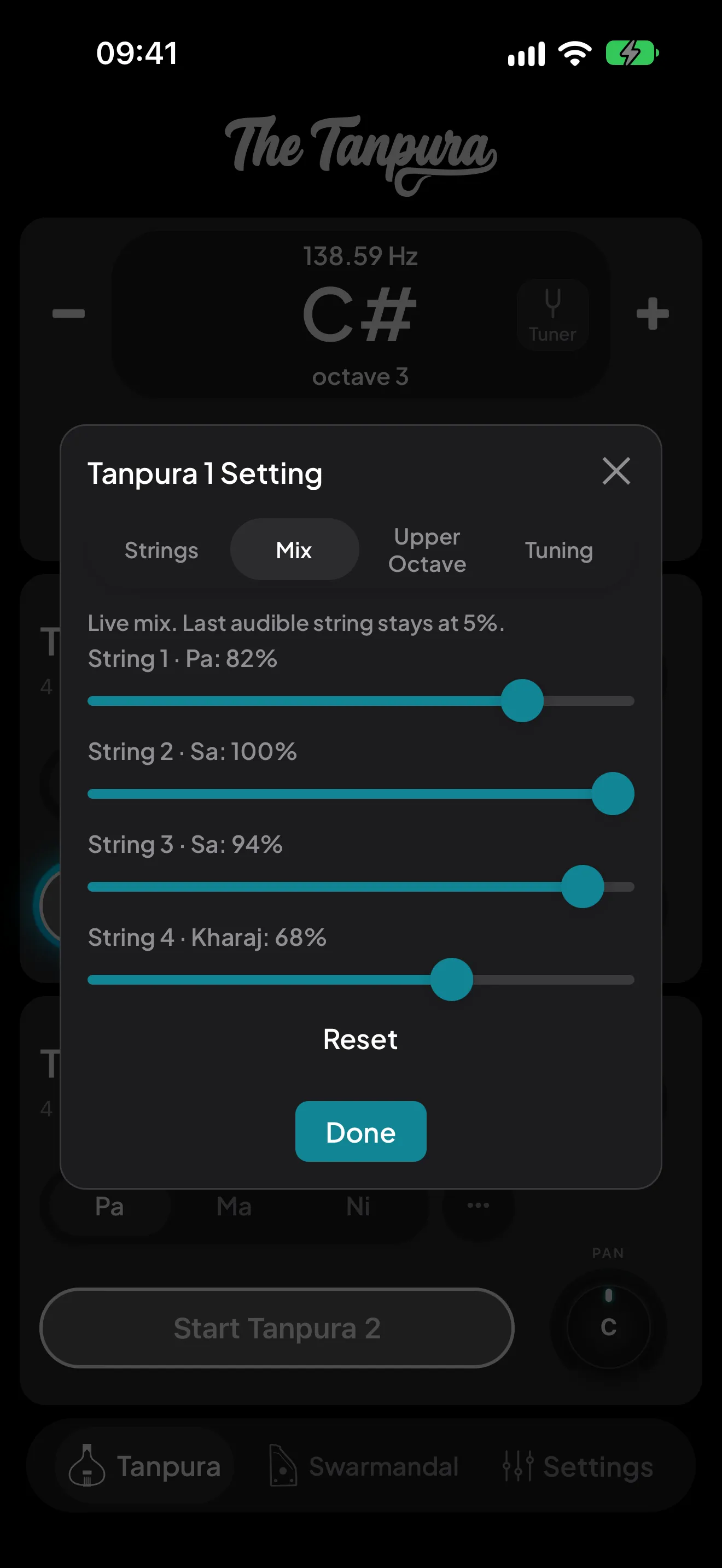
Tap ⋯ on a tanpura to open its settings. Four tabs, one per job:
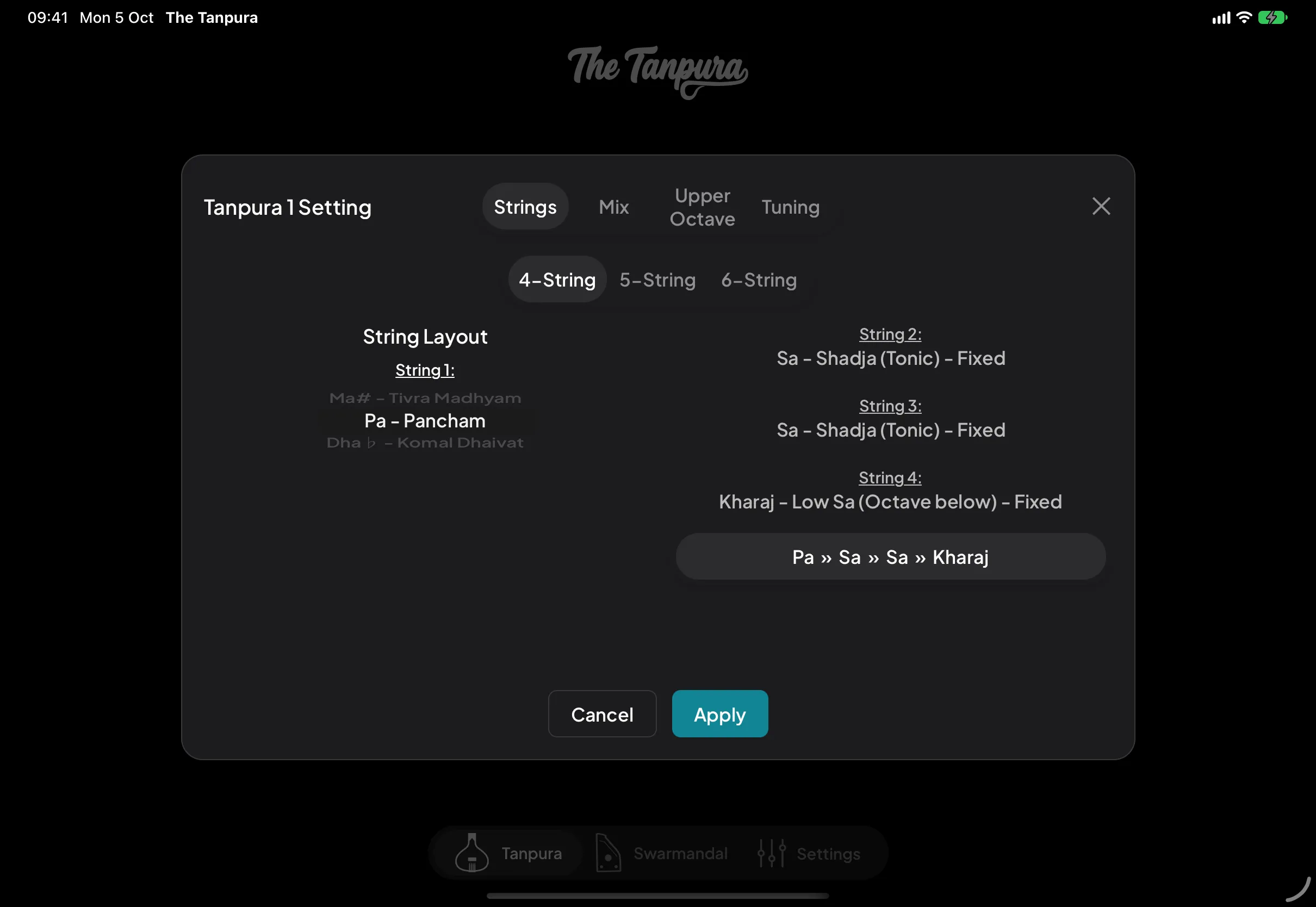
Strings — choose a 4-, 5- or 6-string layout and the note for the strings you can change; the pattern preview spells out the whole cycle. Changes here wait for Apply.
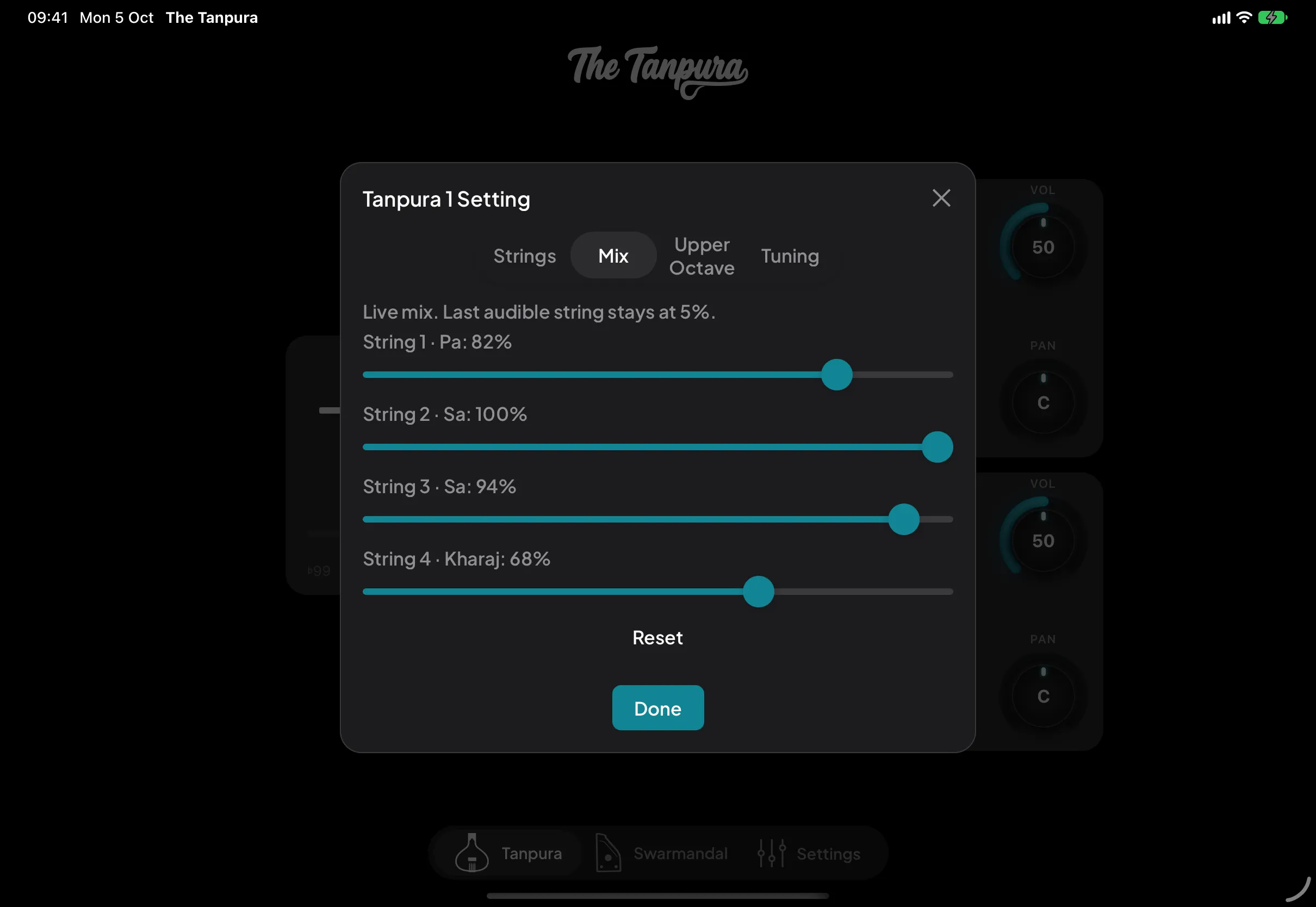
Mix New — a volume for every string, live while the drone plays, so you can bring out the Pa or soften the Kharaj by ear. The last string still sounding never drops below 5%, and Reset evens them out again.
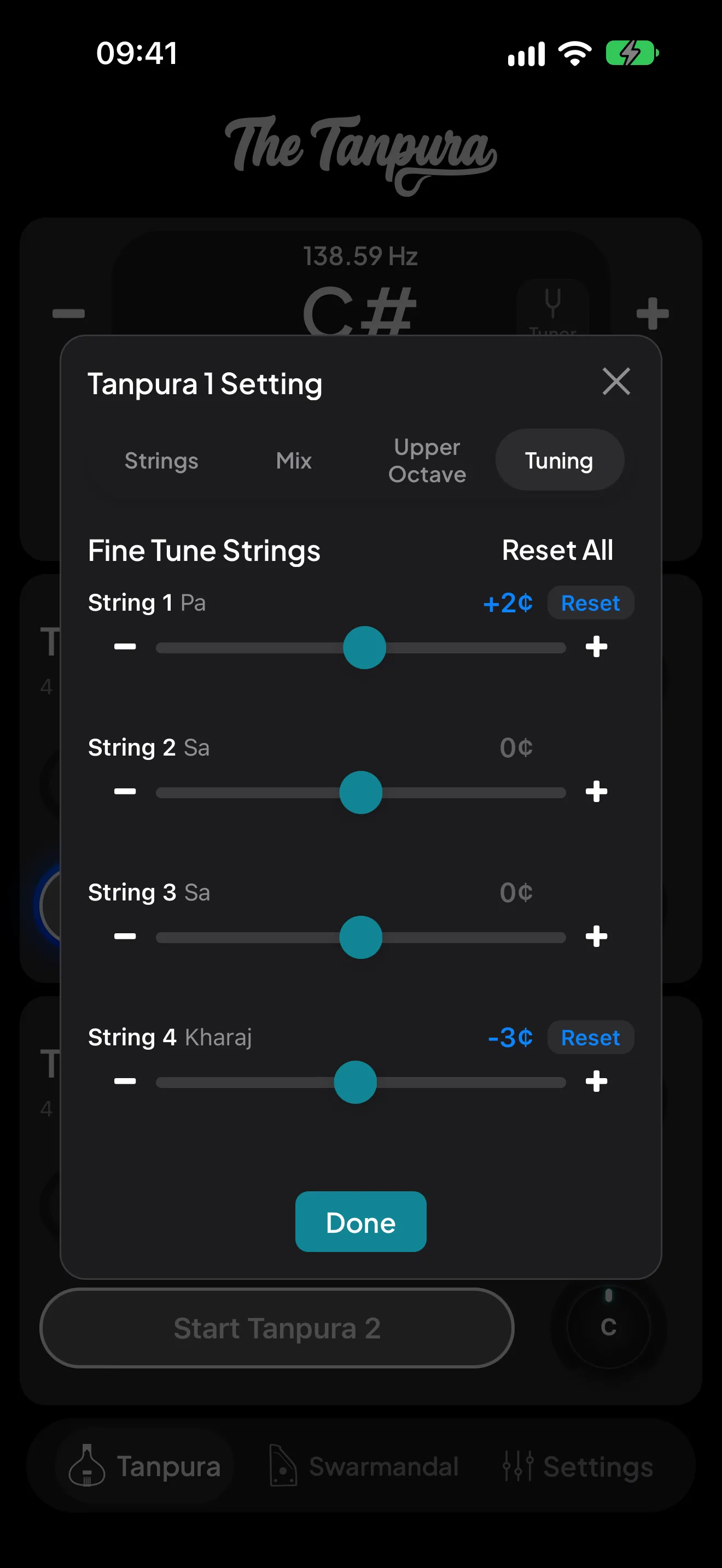
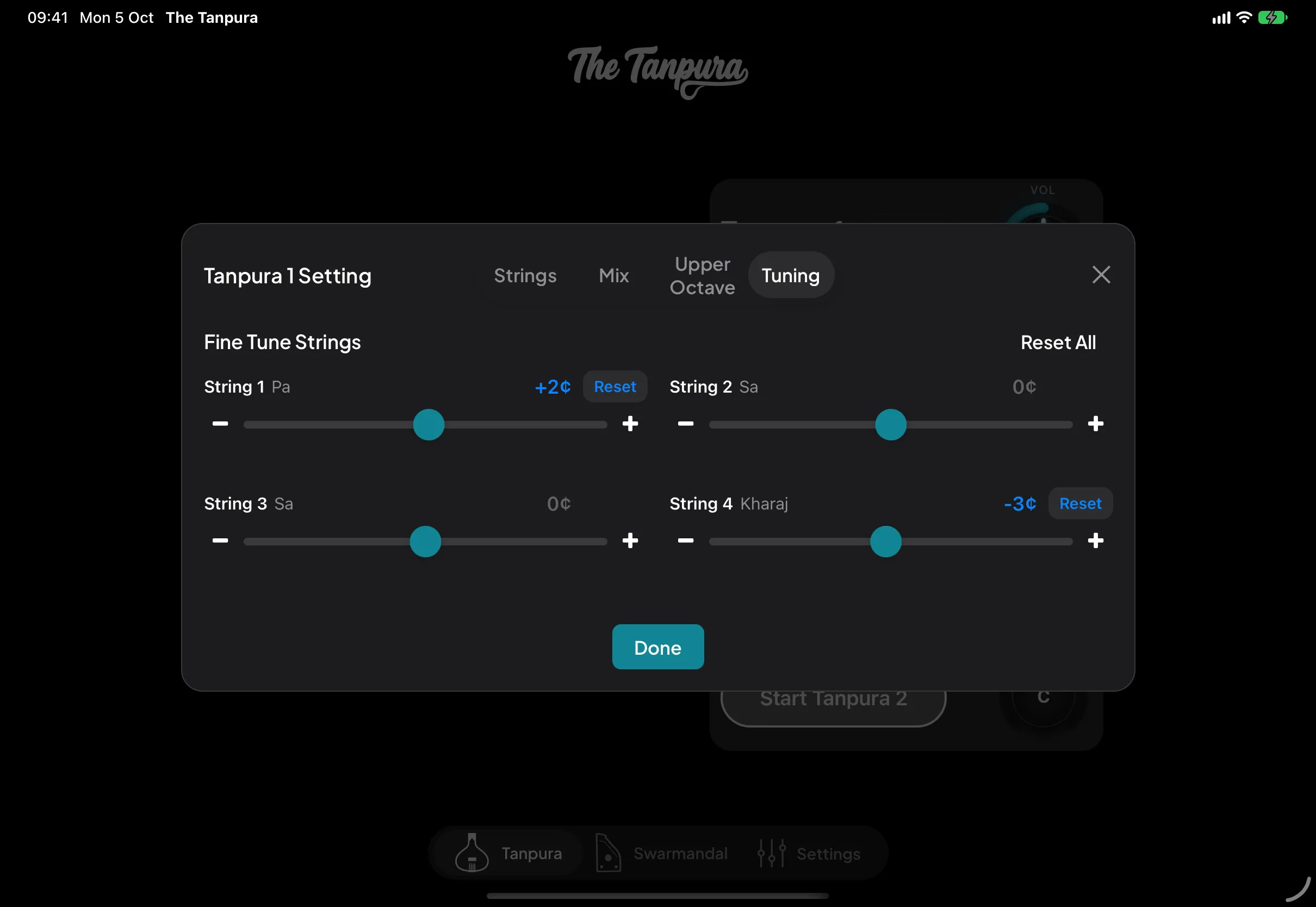
Tuning New — fine-tune each string up to a semitone either way. The slider snaps to the swar's shruti positions, the − and + buttons move it one cent at a time, and each string gets its own Reset (or Reset All). A just Pa, for instance, sits about two cents above the tempered one. On Tanpura 2 this tab also sets Tanpura 2 Sa: tune the whole second tanpura, upper octave included, to a different note from the first for harmony between the two drones, and Reset brings it back to Sa.
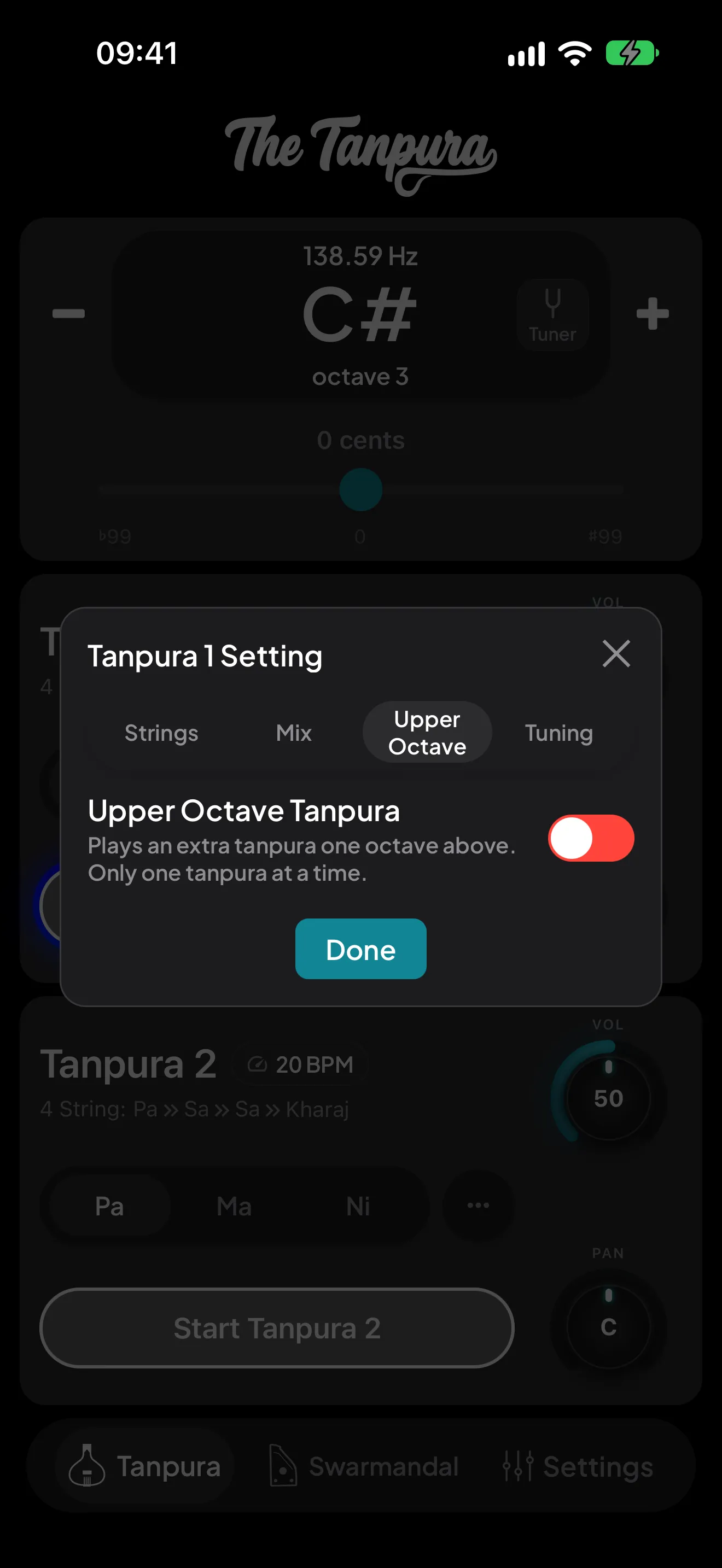
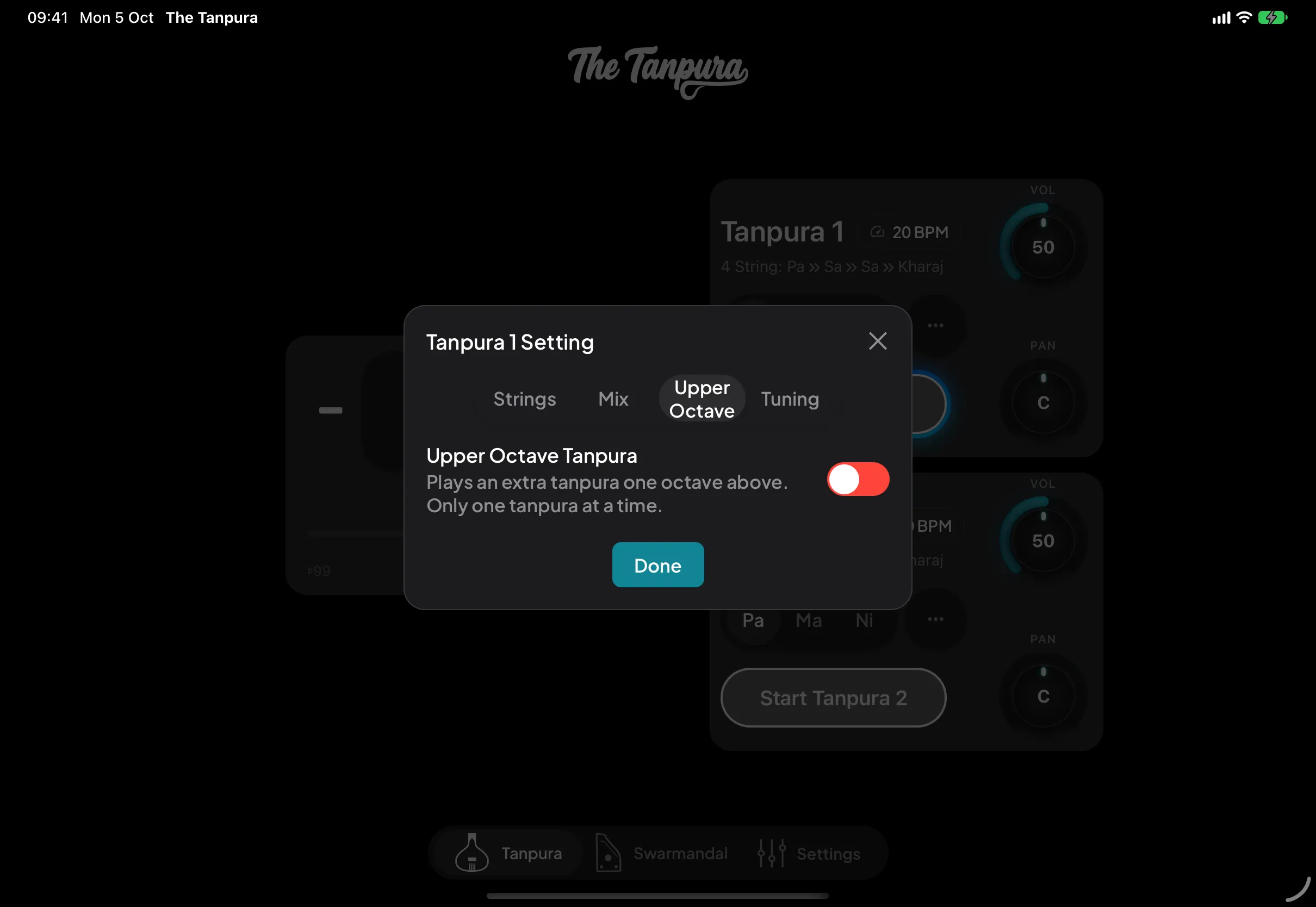
Upper Octave — adds an extra tanpura an octave above, for a brighter, fuller drone. Only one tanpura carries it at a time, and it is offered while your Sa is no higher than F.
The tuner
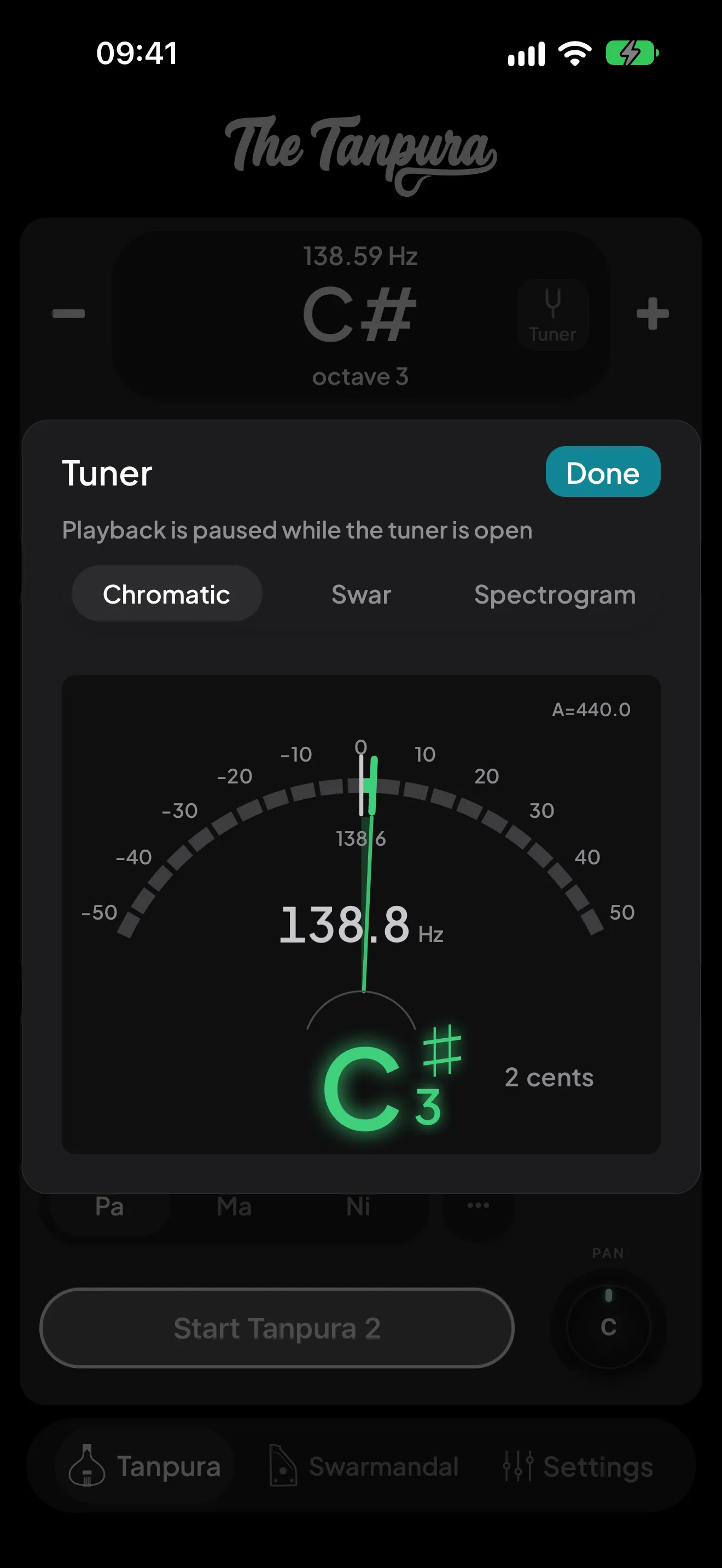
Sing or play a note and the tuner tells you where it sits. Tap Tuner inside the note display (in landscape, tap the note itself). It takes its Sa straight from the drone, so it already knows your Re, Ga and Pa. The first time, the app asks for the microphone; it only listens while the tuner is open. The drone pauses so the tuner hears you and not the tanpura, and comes back when you tap Done. If you don't see the Tuner button, update the app from the App Store or Google Play.
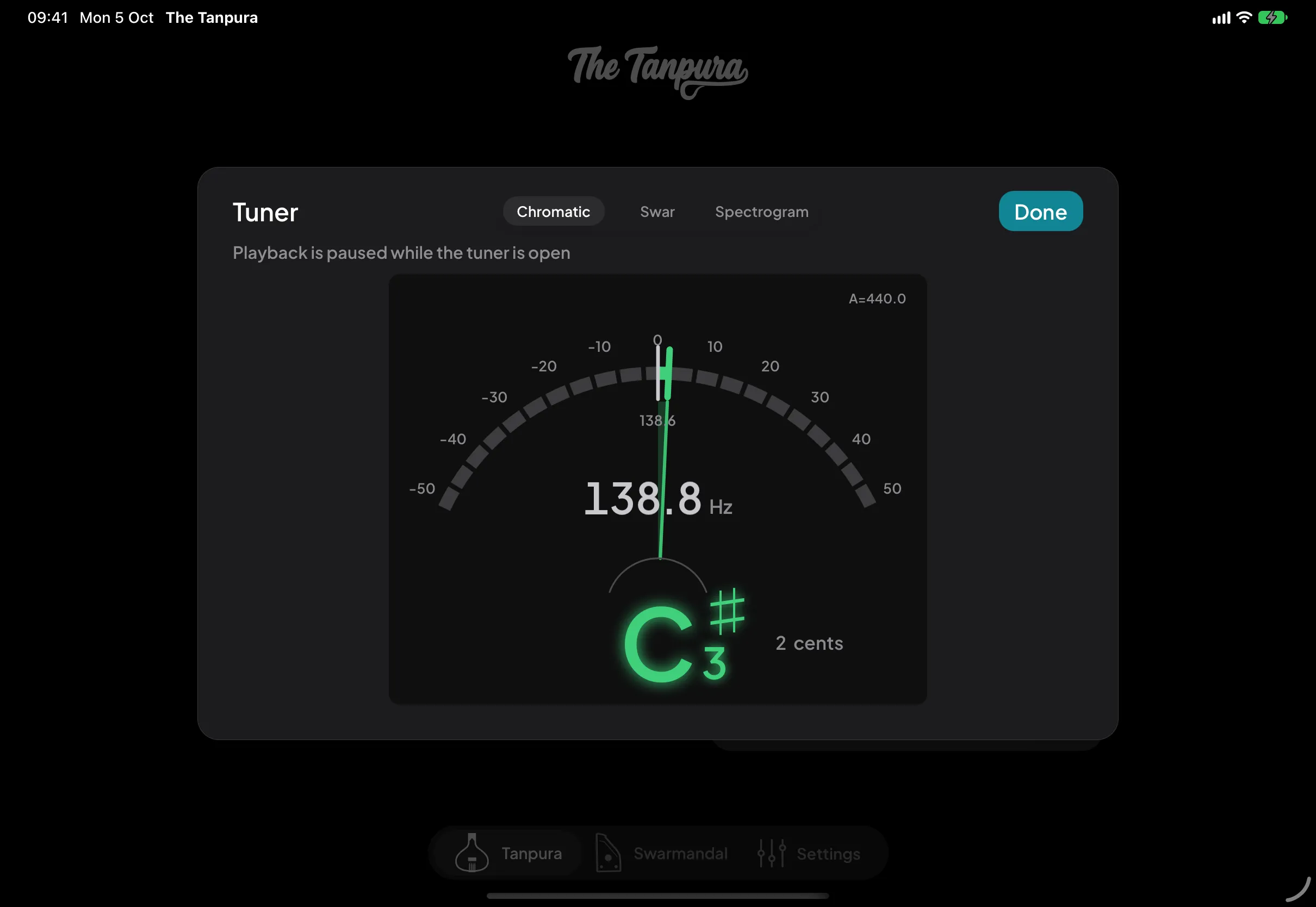
Chromatic — the nearest note with its octave number, its frequency in Hz, and a needle on a ±50 cent scale (a cent is a hundredth of a semitone). It turns green when you are close. The A=440.0 in the corner follows Settings → Tuning Reference.
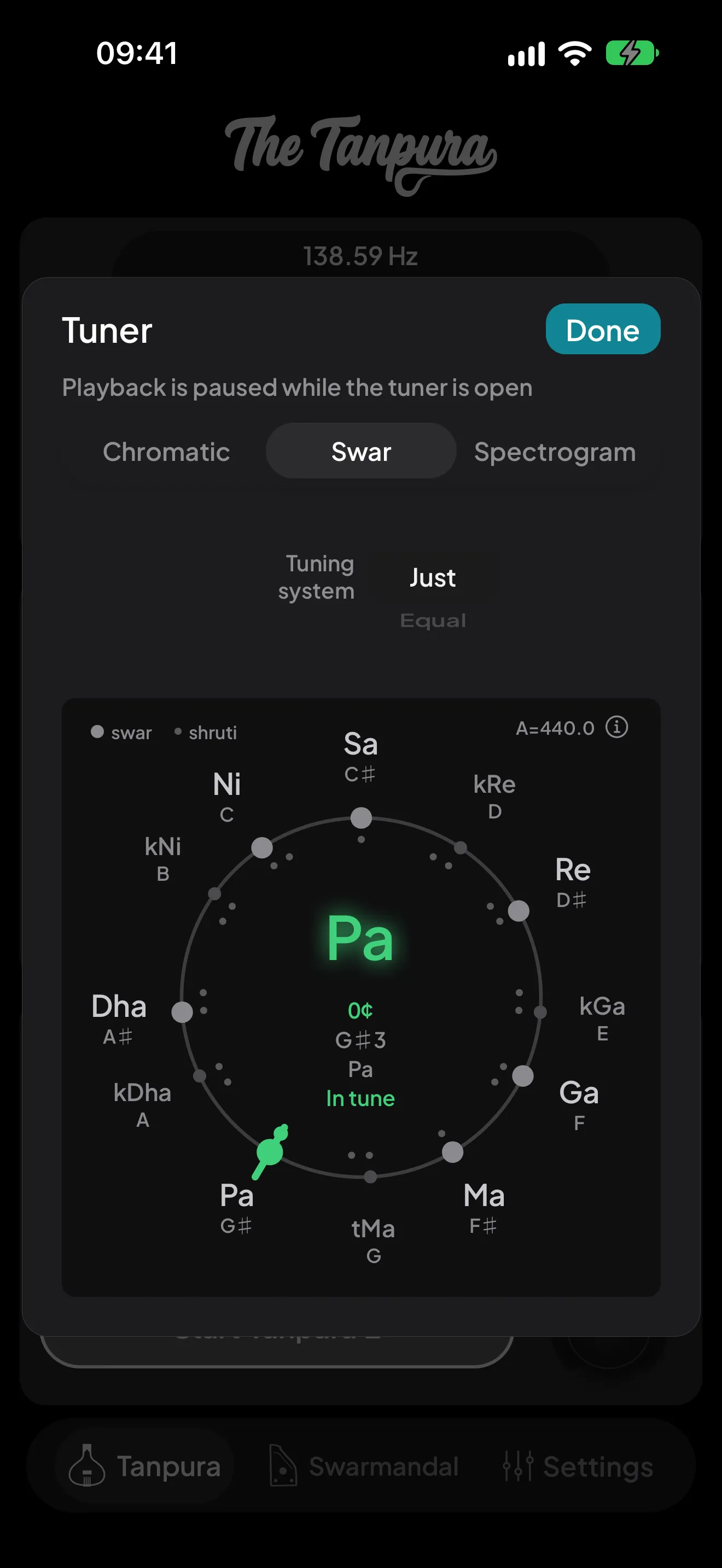
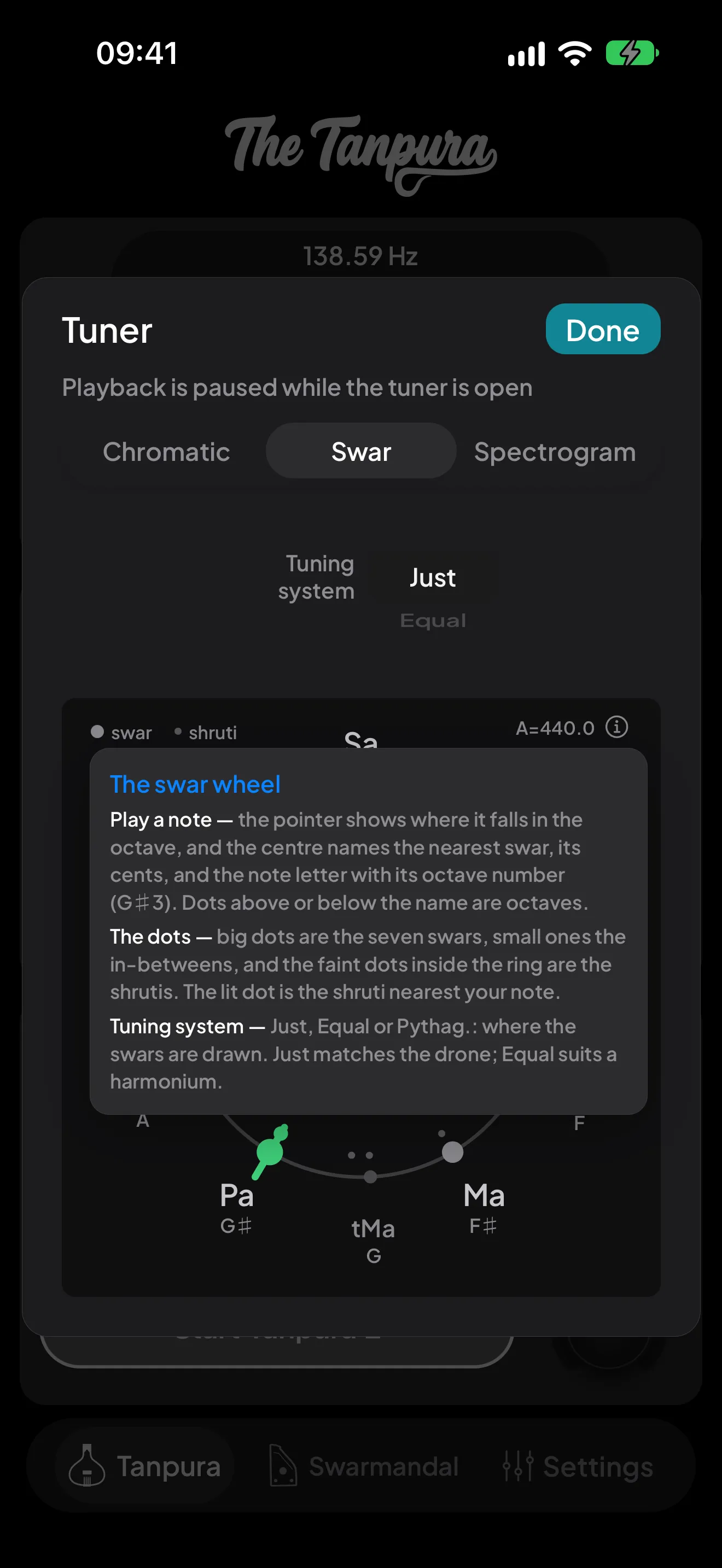
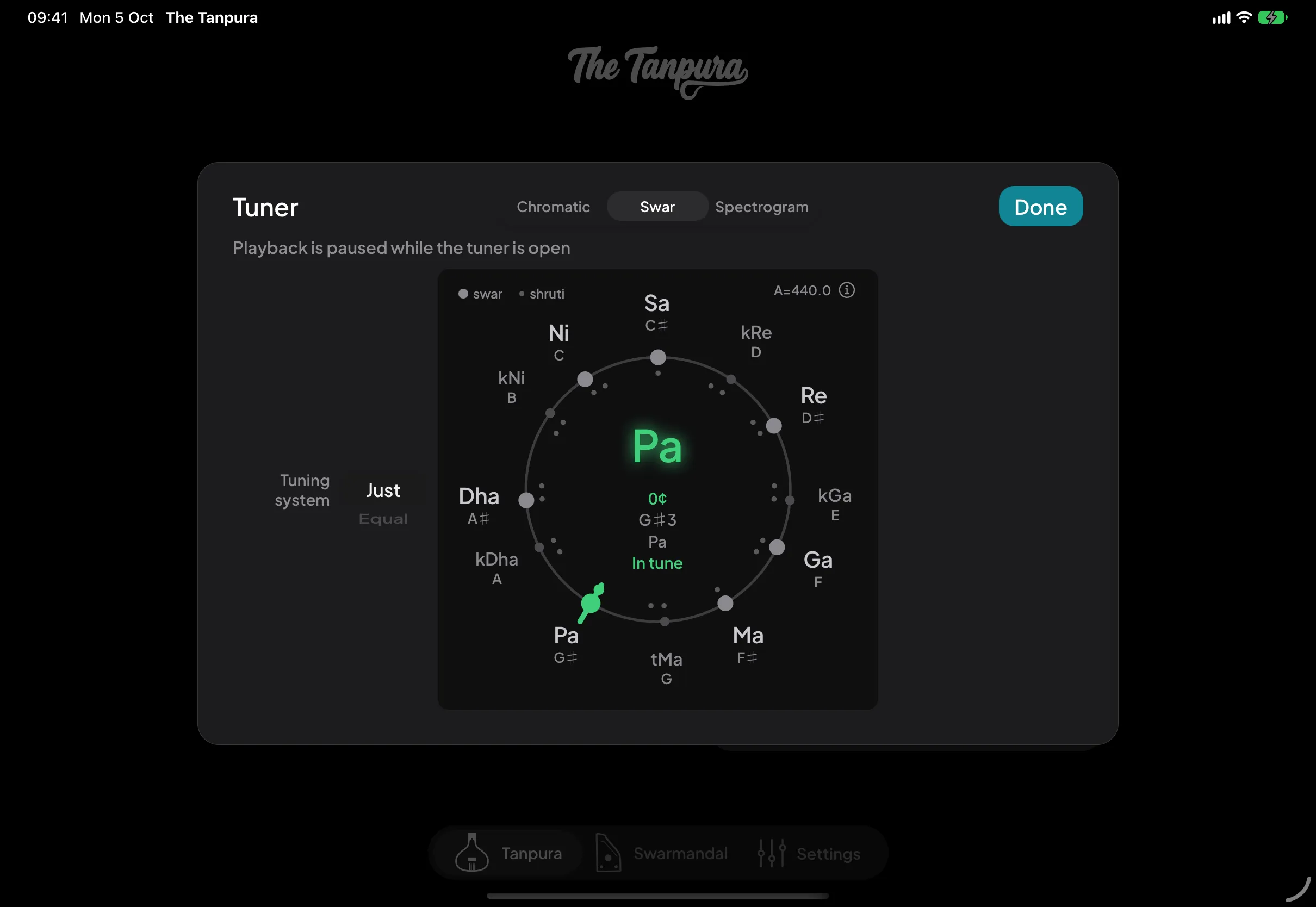
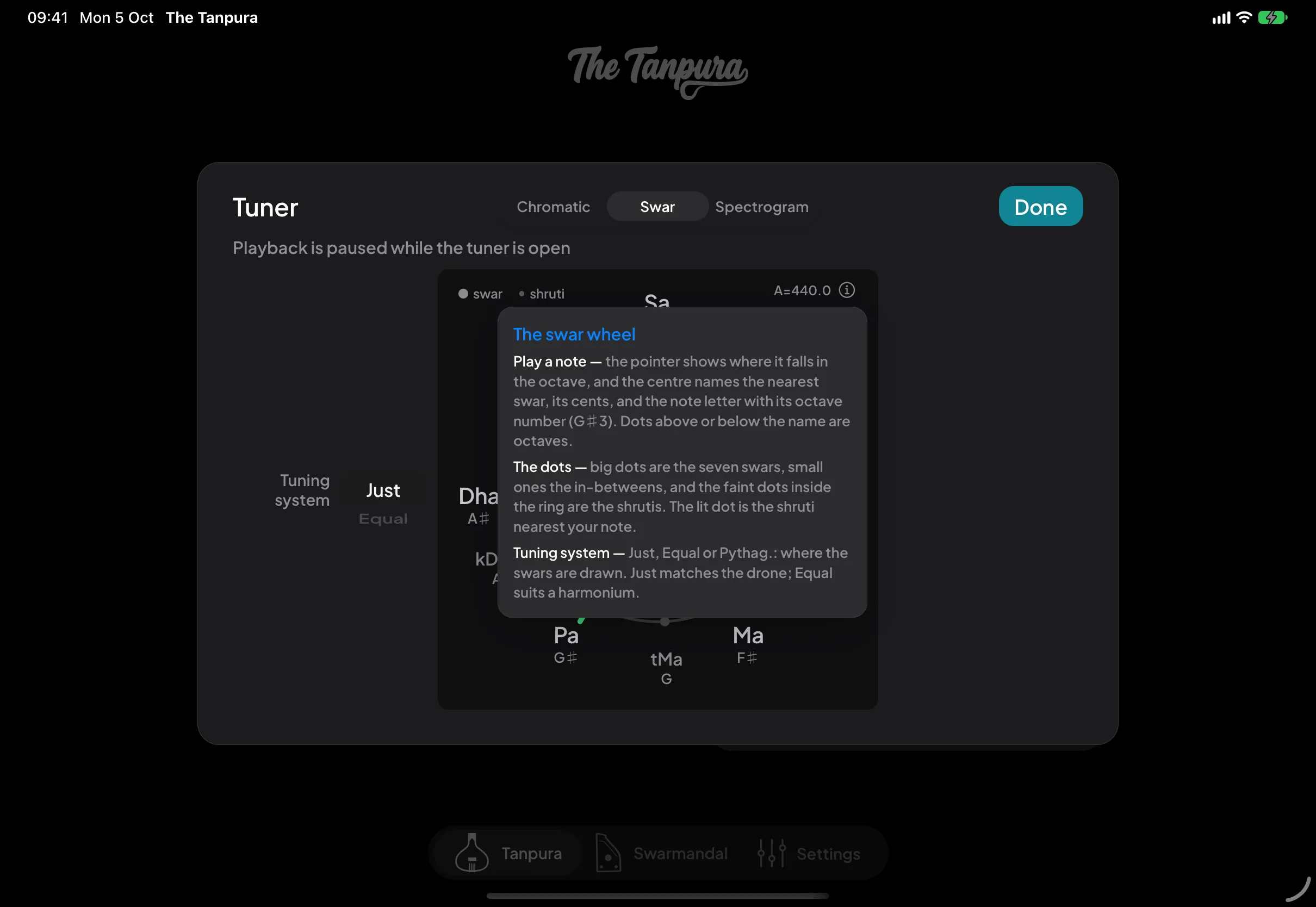
Swar — the wheel is one octave with Sa at the top. The centre names the nearest swar, how many cents off it you are, and the note letter (G♯3), then tells you what to do: In tune, Flat — raise ↑ or Sharp — lower ↓. The big dots are the seven swars, the small ones the komal and tivra notes, and the faint dots inside the ring are the shrutis; the lit one is the shruti nearest your note.
Tuning system chooses where the swars are drawn: Just matches the drone, Equal suits a harmonium, and Pythagorean is for those who tune by fifths. The ⓘ in the wheel's corner explains it all again.
The spectrogram
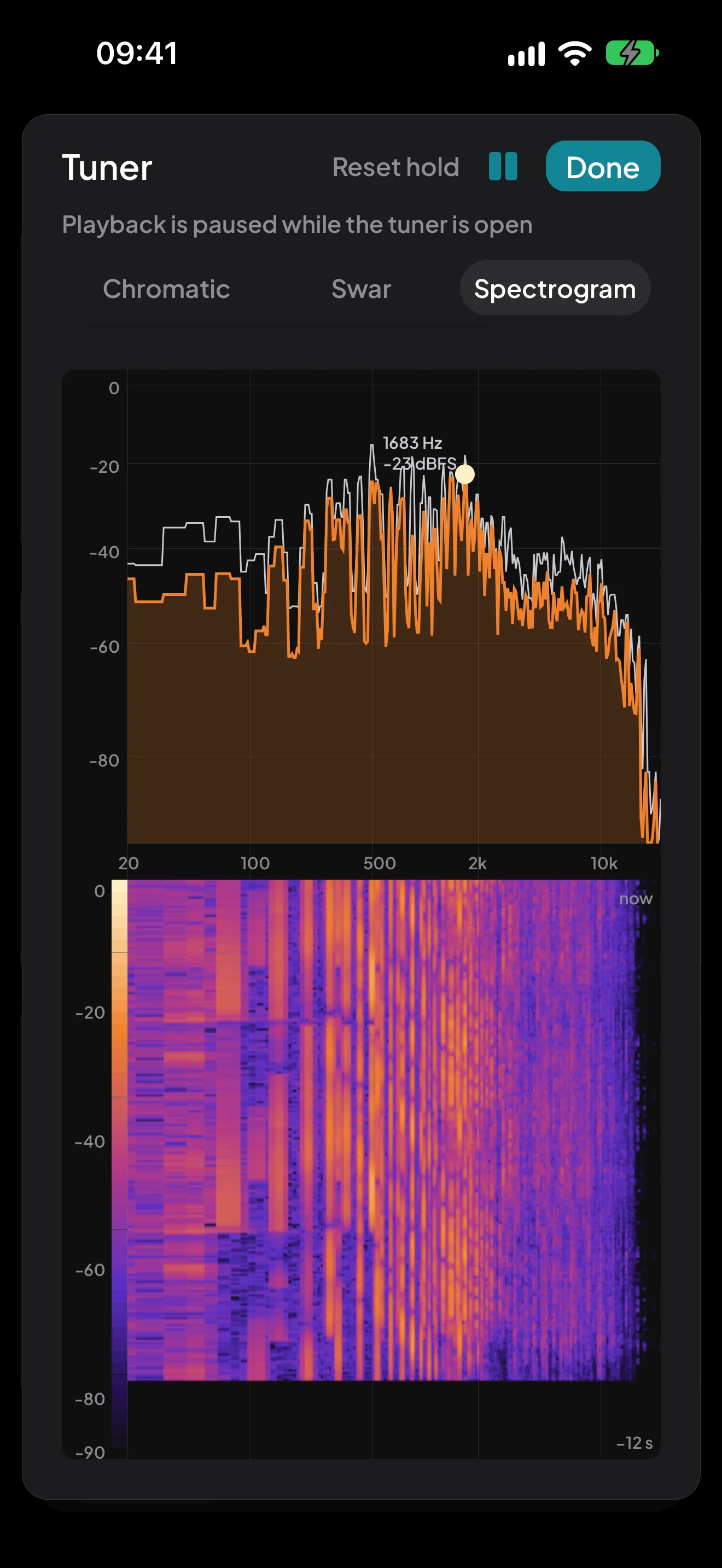
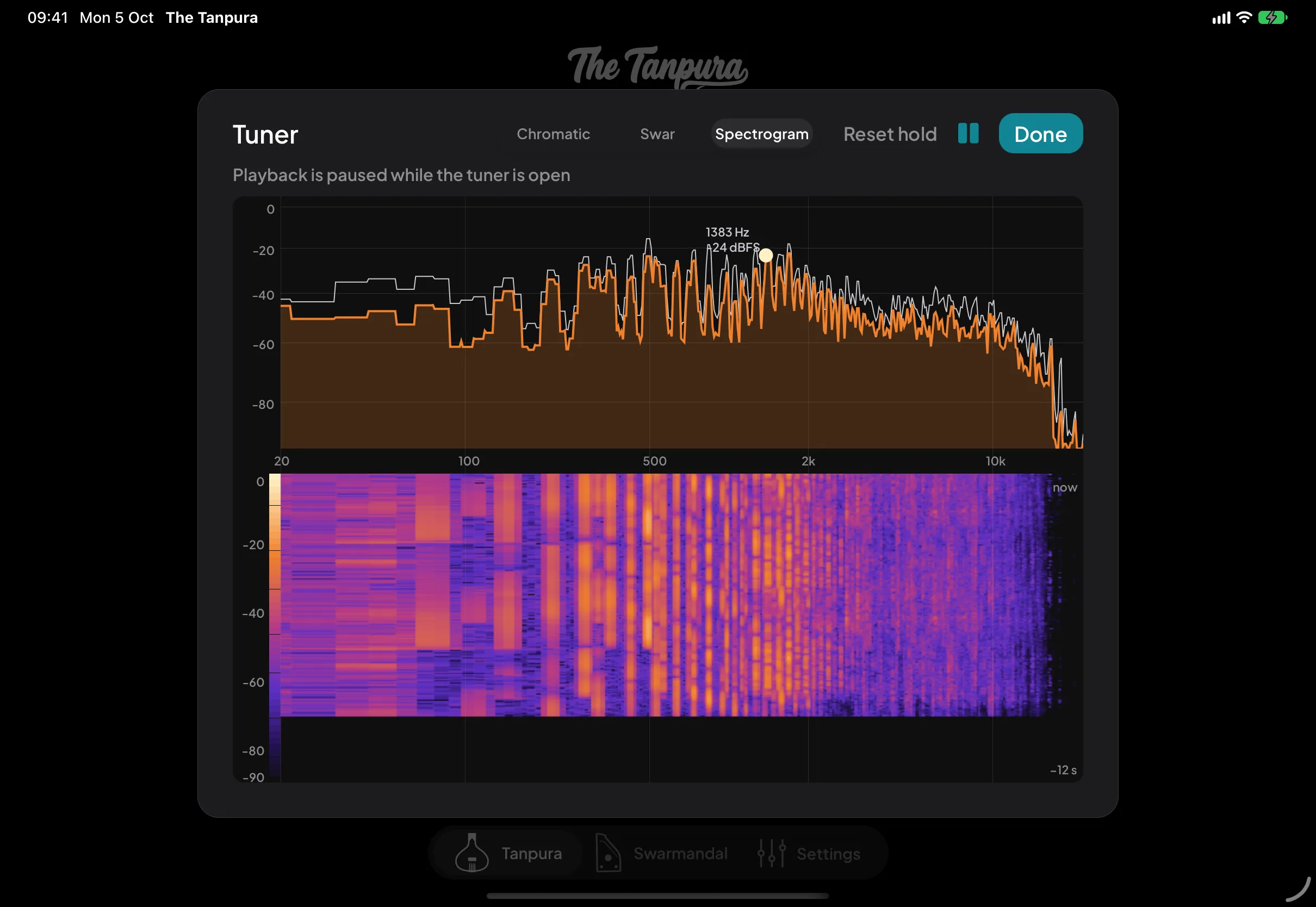
The tuner's third mode shows the sound itself: the cloud of overtones the jivari gives a tanpura, or your own voice. The graph on top is the sound right now, low frequencies on the left; the line above it holds the loudest each frequency has been, and the strongest peak is labelled with its frequency.
The waterfall below keeps the last twelve seconds, newest at the top, with brighter colours for louder sound. Touch either one and slide to read any point: its frequency and note, how loud it was, and how long ago.
Reset hold clears the held line, and the pause button freezes the picture so you can study it. For a note reading, switch back to Chromatic or Swar.
Looking for Surpeti?
The continuous drone (surpeti) lives alongside the tanpura. To configure it, head to the Settings guide.
Read the Surpeti guide →